The core, not an add-on.
OS-level pointer and keyboard input: move, click, drag, scroll, hover, type, shortcuts and explicit key and button holds. Every coordinate names its space, and stale screenshots are rejected.
 w3bs.AccountStart building
An open, local-first layer that lets the agents you authorize use your real desktop: move the mouse, click, drag, type, use shortcuts and read what is on screen. You keep your desktop. A control in your taskbar, panel or menu bar turns it on and off.
curl -fsSL https://w3bs.org/install.sh | shw3bs install agentic-desktop-layerirm https://w3bs.org/desktop/install.ps1 | iexThe first line installs the w3bs CLI (skip it if you have it), the second the desktop layer; w3bs update keeps both current. Without the w3bs CLI: curl -fsSL https://w3bs.org/desktop/install.sh | sh
w3bs desktop browser launch), with the same lease, prompts and stop switch; if DevTools cannot reach the browser they stop and say so rather than falling back to screenshots. On Windows and macOS the same workflow passes end to end on real GitHub-hosted desktops (Windows 56 of 56 checks, macOS 23 of 23). On GNOME, text with characters the keyboard layout lacks is refused rather than typed partially. Install it through the w3bs CLI, or with PowerShell on Windows (above). No platform is certified yet.Linux (KDE Plasma, GNOME; x86_64 and arm64), macOS 11 or later (Apple silicon and Intel) and Windows 10 or 11 (x64). Per-user install, no administrator rights. Builds are not code-signed: Windows SmartScreen may warn the first time, and macOS may ask for Accessibility and Screen Recording again after an upgrade.
The w3bs CLI is the same one that installs every W3BS package; it runs the desktop layer's own installer and remembers it for w3bs update. Read the installers first if you like: install.sh (w3bs CLI), desktop/install.sh, install.ps1.
# macOS and Linux
curl -fsSL https://w3bs.org/install.sh | sh
w3bs install agentic-desktop-layer

# Windows (PowerShell)
irm https://w3bs.org/desktop/install.ps1 | iex

# Without the w3bs CLI (macOS and Linux)
curl -fsSL https://w3bs.org/desktop/install.sh | shDisabledYou turn it on from the tray, panel or menu bar.Commands are shown as w3bs desktop …. On Windows, or without the w3bs CLI, type w3bs-desktop … instead; it is the same program. If w3bs says unrecognized subcommand 'desktop', your CLI is older than 0.1.2: run w3bs self update.
curl -fsSL https://w3bs.org/install.sh | sh
w3bs install agentic-desktop-layerThe first line installs the w3bs CLI (skip it if you have it); the second installs the desktop layer through it, and w3bs update keeps both current. On Windows, in PowerShell: irm https://w3bs.org/desktop/install.ps1 | iex. The installer checks the download against the release checksums, installs w3bs-desktop for your user only, starts the broker in the background with its local MCP endpoint (agent access stays Disabled) and adds the control to your session: the tray icon on KDE Plasma, Windows and other desktops, the panel extension on GNOME (log out and back in once), the menu-bar item on macOS.
w3bs desktop agents add claude-code --preset broadPresets: observe (windows and screenshots, no input), restricted --app <app id> (input only into the apps you name) or broad (the whole desktop). Add --approve-for type to approve each typing request yourself. The token is saved privately for the next step.
w3bs desktop setup claude-code --agent claude-code --httpPrints the line to run: claude mcp add --transport http w3bs-desktop http://127.0.0.1:7801/mcp --header "Authorization: Bearer …". That connects to the MCP endpoint the running broker serves on 127.0.0.1:7801, so nothing extra starts per session. It answers only on loopback, only with your agent token, and refuses browser requests. Leave off --http to get the stdio form instead (Claude Code starts w3bs desktop mcp serve --stdio itself). Use setup opencode or setup codex for those clients. Nothing goes through the cloud.
w3bs desktop controlOnly you can do this, from the tray icon, the GNOME panel, the macOS menu bar, or w3bs desktop control in a terminal (type enable). The first time, the system asks for permission: allow Remote Control on KDE; on GNOME pick your screen and switch on Allow Remote Interaction; on macOS allow w3bs-desktop under Privacy & Security in Accessibility and Screen Recording (w3bs desktop doctor --prompt opens the prompts). Windows needs no extra permission.
In the control, type enable and press Enter. Or skip the terminal and click Enable agent access in the tray, the GNOME panel or the macOS menu bar.
For the full picture, choose Open control panel… at the top of that menu (or run w3bs desktop control --open): a local app in your browser at 127.0.0.1:7801/control with the same switch plus approvals, agents and their permissions, tasks and recent activity. It signs in with a one-time link, never accepts an agent token, and closing it does not turn access off.
claude "open the text editor and write a short note"The agent checks the status, starts a task, looks at the windows and screen, then clicks and types into the window it named. Requests that need approval appear in the tray or panel menu and in the control app, with Approve and Deny. The tray’s Agents and Recent activity submenus show who has access and what just happened.
w3bs desktop disableOr press the emergency shortcut: Super+Alt+Escape on Linux (KDE shows Meta+Alt+Esc), Win+Alt+Esc on Windows, Control+Option+Command+Escape on macOS. You can also run w3bs desktop disable or lock the screen. Everything stops at once, held keys are released, and nothing turns back on by itself.
Access starts Disabled after install, login, restart or a crash. Enabling needs a human. Disabling works at any time and stops everything the layer mediates. The tray menu starts with Open control panel…, a local app with the same switch plus approvals, agents and permissions, tasks and activity. This is what it looks like.
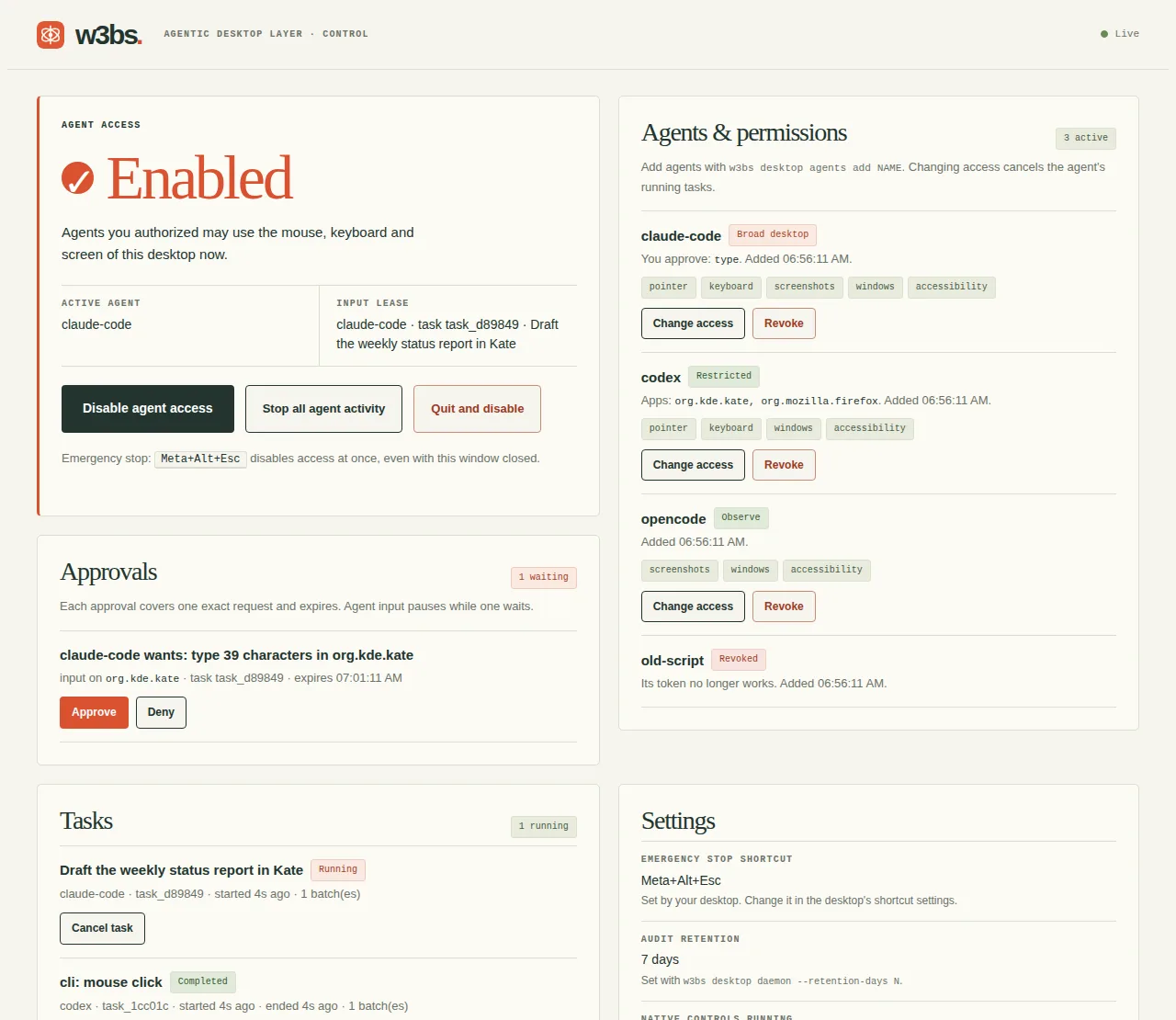
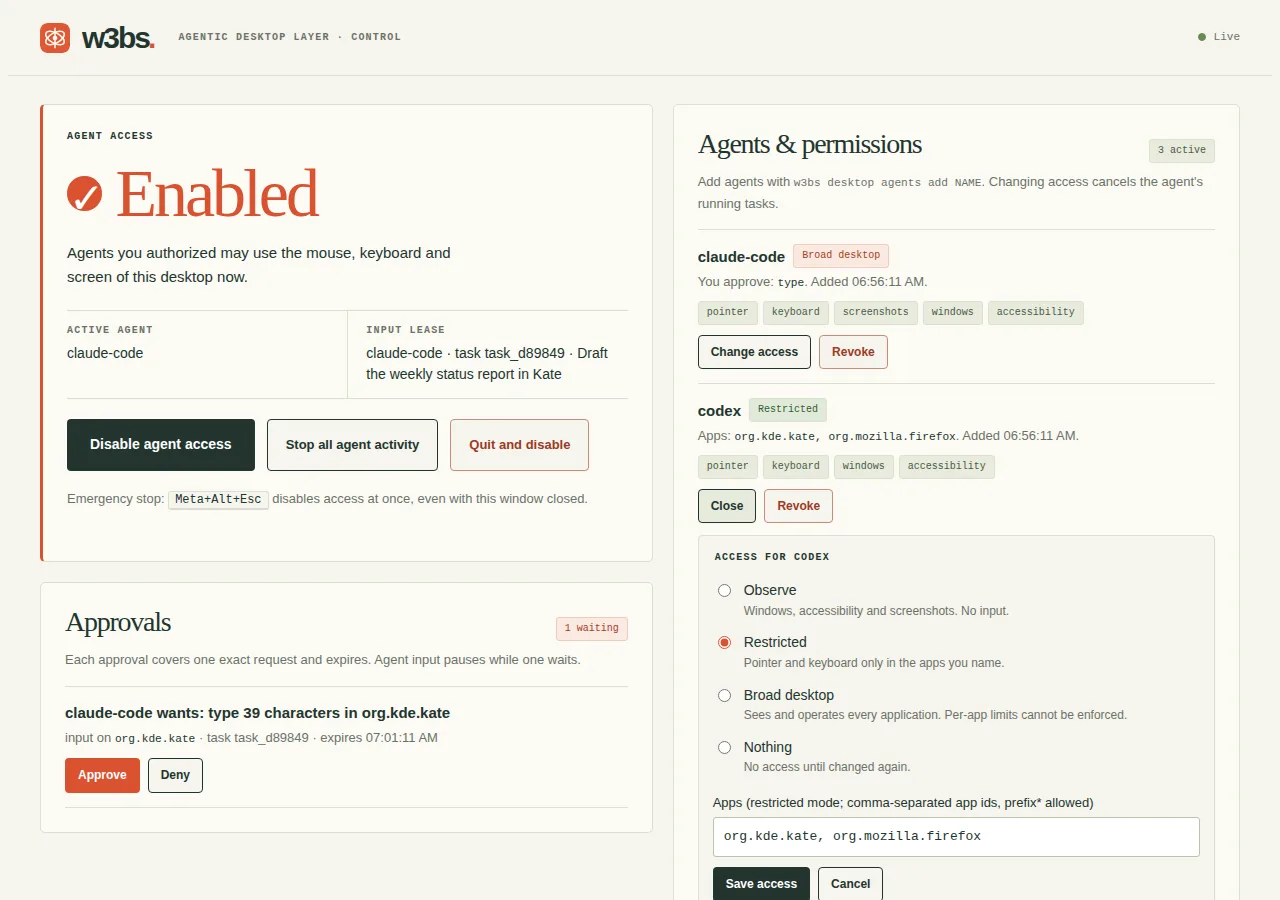
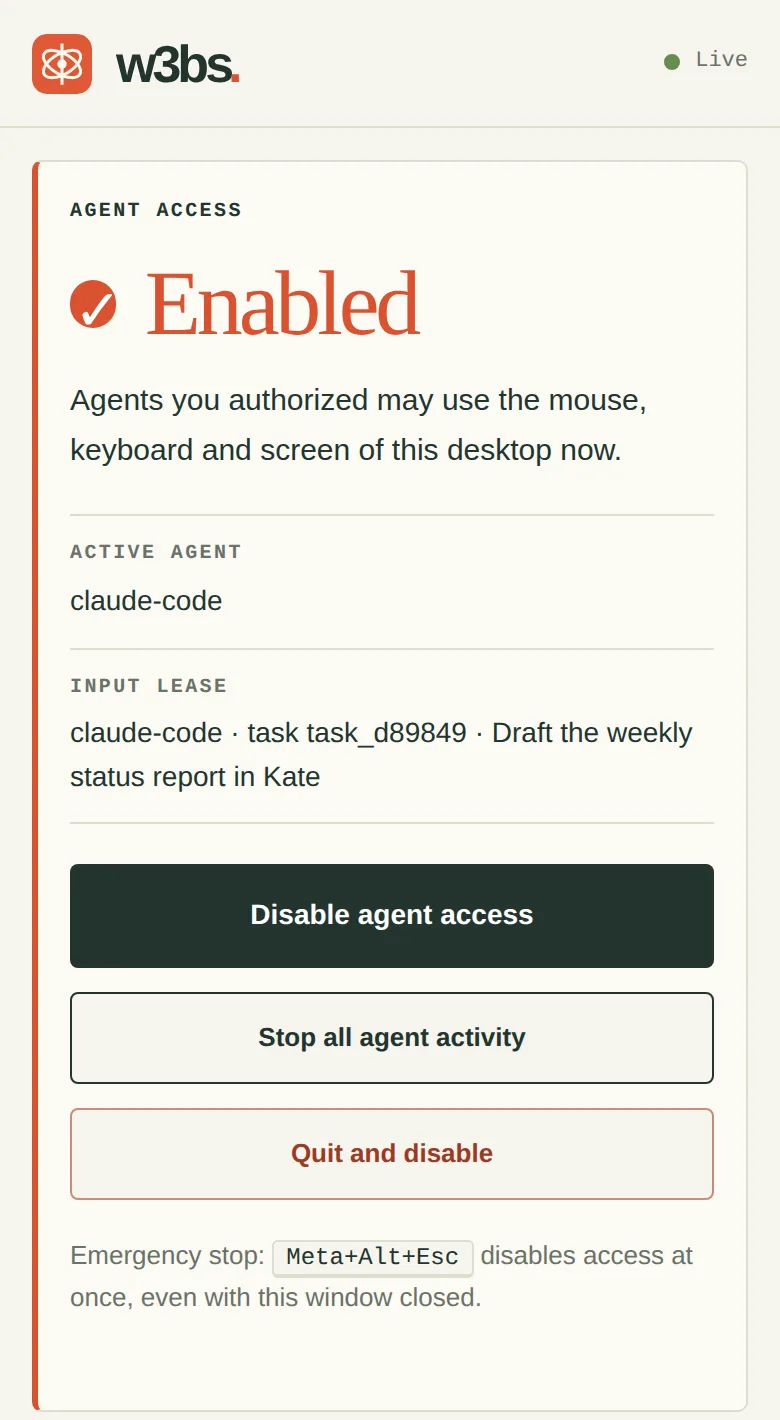
Real screenshots of the control app running against the layer's built-in demo desktop, so the agents and tasks are sample data. The app only answers on 127.0.0.1 and signs in with a one-time link from the tray or w3bs desktop control --open.
Agents need an observe, act, observe loop. They also need a human who can see what is happening and stop it.
OS-level pointer and keyboard input: move, click, drag, scroll, hover, type, shortcuts and explicit key and button holds. Every coordinate names its space, and stale screenshots are rejected.
Claude Code, OpenCode and Codex connect through a local stdio MCP server. The same capability model backs the CLI and the local API. No cloud service sits in the middle.
Disable closes the authorization gate first, revokes the input lease, cancels queued work, closes capture streams and releases any keys the layer is holding.
These are targets, not compatibility claims. A platform is certified only when the full mouse, keyboard and stop workflow passes on it.
| Priority | Platform | Human control | Status |
|---|---|---|---|
| First | KDE Plasma | System-tray item or Plasma widget | Installable, testing |
| First | GNOME | Top-panel extension and settings app | Installable, testing |
| Next | Windows | Taskbar notification-area icon | Installable, testing |
| Next | macOS | Menu-bar item | Installable, testing |
| Next | Hyprland (and W3BS DE) | Tray in waybar; bar indicator in W3BS DE | Installable, testing |
| Next | Cinnamon, Xfce, MATE, LXQt | Tray or panel integration | Planned |
| Expansion | Vela, Sway and others | Capability-based compositor adapters | Planned |
Wayland first on KDE and GNOME, with X11 tested where the desktop still supports it. Vela support is a clean-room adapter built from public interface facts. No Vela code is used.
The broker is platform-neutral and runs with your user's privileges. Desktop adapters only report what exists and emit events. Authorization, leases and cancellation stay in the broker, so a new platform cannot weaken them.
Claude Code / OpenCode / Codex / compatible clients
                       |
               MCP / CLI / local API
                       |
       Local authorization and task broker
                       |
      Shared input engine, leases, audit records
                       |
       Desktop and application/service adapters
                       |
                Existing OS and apps

Native tray/panel/menu-bar control
                       |
Separate human-management channelMouse, keyboard, screen capture, clipboard and account access are separate, visible grants per agent.
The agent may act only on the applications you granted. Input aimed anywhere else is denied. Keyboard input must name its target window, and focus is checked before every chunk of text.
Visual and input control of everything on screen. In this mode business rules cannot always be enforced: a draft-only mail grant does not stop sending through a browser.
An approval covers one agent, task, target and argument digest, and it expires. Agents cannot enable the layer or approve their own access. Input pauses while an approval is on screen.
Run w3bs desktop --help for every option. Text to type always comes from a file or standard input, never from the command line, so it stays out of shell history.
w3bs desktop status                 # Disabled / Enabled, who holds the input lease
w3bs desktop doctor                 # session, backend, permissions, extension checks
w3bs desktop control                # terminal control: enable, disable, approve, deny
w3bs desktop control --open         # control app in your browser (one-time sign-in link)
w3bs desktop tray                   # tray control (started for you on login)
w3bs desktop disable                # stop everything now
w3bs desktop agents add|list|update|revoke|remove
w3bs desktop approvals list|approve|deny
w3bs desktop tasks list|inspect|cancel
w3bs desktop audit export|delete    # metadata only, kept 7 days
w3bs desktop layout|windows list|inspect --window ID      --agent NAME
w3bs desktop screen capture --display ID --output shot.png --agent NAME
w3bs desktop mouse move|click|drag|scroll ...              --agent NAME
w3bs desktop keyboard type --stdin|press|shortcut ...      --agent NAME
w3bs desktop mcp serve --stdio --agent NAME
w3bs desktop daemon --mcp-http 127.0.0.1:7801   # broker + MCP over HTTP (installers do this)
# Linux
systemctl --user disable --now w3bs-desktop
rm ~/.local/bin/w3bs-desktop ~/.config/systemd/user/w3bs-desktop.service \
   ~/.config/autostart/w3bs-desktop-tray.desktop
gnome-extensions uninstall agentic-desktop@w3bs.org   # GNOME only

# macOS
curl -fsSL https://w3bs.org/desktop/install.sh | sh -s -- --uninstall

# Windows (PowerShell)
& ([scriptblock]::Create((irm https://w3bs.org/desktop/install.ps1))) -Uninstall
Version 0.2, October 12, 2026. An implementation specification, not a claim of released software. Source: github.com/profullstack/w3bs.org/desktop.
| Field | Value |
|---|---|
| Product | Agentic Desktop Layer |
| Initiative | W3BS |
| Website | https://w3bs.org/desktop |
| Package | agentic-desktop-layer |
| Command namespace | w3bs desktop |
| Version | 0.2 - October 12, 2026 |
| First implementation targets | KDE Plasma and GNOME |
| Additional required platforms | Other major Linux desktops, Windows, and macOS |
| Status | Implementation specification; not a claim of released software or website deployment |
Vela integration is a clean-room implementation from interface facts; no Vela (GPL-3.0) code is used.
Agentic Desktop Layer is an open-source, local-first automation layer for existing desktop environments and operating systems.
It enables authorized agents, including Claude Code, OpenCode, and Codex, to operate the user's actual desktop: move the mouse, click, drag, scroll, type, press shortcuts, inspect applications, use browsers, manage files, and work with email and calendars.
Users keep their existing desktop. A shared local service exposes consistent CLI, API, and MCP interfaces. Native adapters handle platform differences. A persistent taskbar, panel, system-tray, or menu-bar control lets the human enable, disable, and inspect agent activity.
Product promise: Your desktop. Your agents. Your switch.
Mouse and keyboard control are core product capabilities, not optional future features. A browser-only integration or collection of cloud connectors does not satisfy this specification.
Build KDE Plasma and GNOME support first. Design the shared runtime for Windows and macOS from the beginning, then implement their native adapters without rewriting the product.
The first Linux alpha must include real desktop mouse/keyboard control, observation, a working enable/disable switch, and at least one agent integration. The cross-platform beta must support KDE, GNOME, Windows, and macOS with the same core workflow.
Additional Linux targets include Cinnamon, Xfce, MATE, and LXQt. Track Wayland and X11 sessions separately. Sway, Hyprland, Vela, and other environments can add certified adapters through the same extension interface.
Do not build a replacement OS, compositor, browser engine, or mandatory cloud assistant. Do not require users to switch desktops, use Windows through WSL, or replace macOS with a Linux VM.
Universal application compatibility, login-screen automation, bypassing OS protections, and unattended public-internet remote control are outside the initial scope.
These are implementation targets, not claims of current compatibility. Pin exact tested OS, desktop, display-server, browser, and architecture versions before each release.
| Priority | Platform | Human control | Integration target |
|---|---|---|---|
| First | KDE Plasma | System-tray item or Plasma widget | Linux portals, accessibility, and minimal KWin integration |
| First | GNOME | Top-panel extension and settings app | Linux portals, accessibility, and minimal GNOME integration |
| Next | Windows | Taskbar notification-area icon | Native UI Automation, capture, and input backend |
| Next | macOS | Menu-bar item | Native Accessibility, capture, and input backend |
| Next | Cinnamon, Xfce, MATE, LXQt | Tray/panel integration | Shared Linux adapters plus desktop-specific fixes |
| Expansion | Sway, Hyprland, Vela and others | Supported panel/tray control | Capability-based compositor adapters |
Prioritize Wayland for KDE/GNOME. Also test X11 where the selected desktop/version supports it. A desktop name alone is not a compatibility guarantee.
Start certification with x86-64 Linux/Windows and Apple Silicon macOS. Track other architectures explicitly rather than assuming cross-compilation proves support.
Linux's RemoteDesktop portal supports permissioned pointer and keyboard sessions, with EIS/libei or supported D-Bus input methods. Discover granted devices and available interfaces at runtime. Do not mix EIS and Notify input paths within the same active EIS session. [1]
Screen capture availability does not prove input support. For example, the wlroots portal backend documents a narrower implemented interface set. Additional compositors require their own capability validation. [2]
Use AT-SPI for exposed Linux application actions and Windows UI Automation for structured Windows controls. Application accessibility quality determines available semantics. [3][4]
Windows input fallback can use SendInput, respecting its integrity-level restrictions. A failed injection is an error, not proof the application received the action. [5]
The macOS adapter should use native Accessibility and Core Graphics event facilities, with OS-approved capture. Onboarding must obtain the relevant user permissions; Accessibility access requires explicit user approval. [6][7]
The native control must remain accessible when the main application window is closed.
Agentic Desktop Layer
Status: Disabled

[ Enable agent access ]

Agents and permissions...
Current tasks...
Activity and approvals...
Applications and accounts...
Settings...

Stop all agent activity
Quit and disable
When enabled, show Disable agent access, the active agent, current task, and granted access level. Optional pointer highlighting should identify agent-generated activity without obscuring the user's work.
Provide keyboard navigation, screen-reader labels, high-contrast states, and a configurable emergency-stop shortcut. Do not communicate state through color alone. Where tray support is absent, install an appropriate extension or expose a persistent companion control.
| State | Meaning |
|---|---|
| Disabled | No sensitive observations or task actions through this layer |
| Enabling | Human authorization and backend readiness are being checked |
| Enabled | Only authenticated, explicitly permitted work may proceed |
| Stopping | New work is rejected while resources and input leases are revoked |
| Blocked | Required permission, backend, session, or safety control is unavailable |
Pending approvals and running tasks are additional indicators, not substitutes for the global state.
Start Disabled after installation, login, runtime restart, or crash recovery. Autostart may launch the control but must not silently enable access. Lock, logout, suspend, and verified loss of the safety control revoke access. Unlock/resume does not automatically restore it.
Provide actual OS-level pointer control in the authorized desktop session, not only simulated DOM clicks inside a browser.
| Operation | Requirement |
|---|---|
| Move | Absolute movement and relative movement where the backend supports it |
| Click | Left, right, middle, single, and double clicks |
| Button state | Explicit button-down/button-up with bounded hold duration |
| Drag | Press, move along a bounded path, release; support drag-and-drop workflows |
| Scroll | Vertical and horizontal scrolling with explicit units |
| Hover | Move to a target and wait for a bounded duration |
| Modifiers | Combine pointer actions with approved keyboard modifiers |
| Position | Report pointer position when available; otherwise return a capability limitation |
| Extra buttons | Optional, individually advertised capabilities |
Resolve an accessible element or window-relative target when possible. Raw-coordinate operations remain available under a suitable desktop-control grant.
Every coordinate must identify its space: captured image, window, display, or desktop. Include display identity, scale, rotation, origin, and layout generation. Reject stale screenshot coordinates after relevant display or window changes.
Test multiple monitors, negative display origins, mixed scaling, portrait displays, and display hotplug. Never assume screenshot pixels equal desktop logical coordinates.
A click request must identify or validate its intended target. If an unexpected window covers the target, stop or re-observe rather than clicking blindly. Do not claim raw pointer control can always be confined to one application's business operations.
Provide real keyboard input to the intended authorized application.
| Operation | Requirement |
|---|---|
| Text | Enter UTF-8 text, multiline content, and supported international characters |
| Key press | Press/release an individual key |
| Key state | Explicit key-down/key-up with bounded hold duration |
| Shortcuts | Modifier combinations such as Ctrl+C, Ctrl+V, Alt+Tab, and platform equivalents |
| Navigation | Tab, arrows, Enter, Escape, Home/End, Page Up/Down, function keys |
| Sequences | Execute bounded ordered actions with cancellation checkpoints |
| Layout | Distinguish physical keys, logical keys, and text insertion |
| Cleanup | Release synthetic keys/modifiers after cancellation or failure |
Define portable modifier names and platform mappings. Do not assume Command on macOS is interchangeable with Control, or that physical keycodes are portable across OSes.
Check target/focus immediately before typing and between bounded text chunks. Unexpected focus changes must stop the operation. For APIs unable to guarantee target-bound delivery, disclose that limitation and require broader control authorization.
Prefer native text insertion or accessibility setters where appropriate. Clipboard-assisted insertion requires a separate grant and must not overwrite a clipboard the human changed concurrently. Do not imply identical input-method/IME support across all applications; publish tested coverage.
Do not log typed text, passwords, or raw human keystrokes by default. Emergency-shortcut detection must not become a background keylogger.
OS-reserved shortcuts and protected authentication interfaces may be unavailable. Return explicit unsupported/denied results rather than trying to bypass protections.
Only one agent may hold the shared desktop input lease at a time. Accessibility actions that mutate visible UI must participate in coordination too.
Independent service operations and isolated browser contexts may run concurrently when resources do not conflict. Separate virtual workspaces are not security sandboxes or independent keyboards.
Each lease is bound to an authenticated principal, task, session, approved scope, expiry, and revocation generation. Validate it at dispatch, not merely when work enters the queue.
Input batches must be short and interruptible. Bound event counts, text lengths, holds, delays, and queue size. Do not enqueue an entire long-running task into an uncancellable OS input buffer.
Provide a tested emergency shortcut and persistent Disable control on every certified platform. Revoke the active lease when the human invokes takeover. Where physical input can be reliably distinguished, support automatic pause when the human resumes using the desktop; explicitly report platforms where this detection is unavailable.
After takeover, do not resume automatically. Require human reauthorization. Cleanup must release only this layer's synthetic held input, without deliberately cancelling the human's physical key state.
Disable must stop new mouse/keyboard dispatch, screen capture, accessibility observations, browser control, file access, email/calendar work, and connector streams mediated by the product.
Close the authorization gate first, invalidate leases, discard queued work, close streams, release synthetic input, and cancel managed tasks. Stop unresponsive managed adapters when necessary. Do not forward late sensitive results to agents.
Report completed, cancelled, and outcome-unknown operations separately. Disabling cannot retract already-delivered input, unsend an email, erase data already received by an agent, or guarantee cancellation at an external provider.
The switch controls this product's access, not unrelated tools, credentials, or host privileges the agent possesses independently.
Agents need a verified observe-act-observe loop, not just a remote mouse.
Provide approved screenshots or bounded screen streams; window/application discovery; accessible names, roles, values and actions; display metadata; and task-scoped change events. Every result includes timestamps and expiring handles.
Prefer application/service APIs, then structured browser control, then native accessibility, then screenshot/input automation. All four routes are part of the architecture; GUI control must still be usable directly when authorized.
| Area | Required capability |
|---|---|
| Applications | Discover, launch, focus, inspect; supported move/resize/close |
| Browser | Approved tabs/profiles, page inspection, forms, navigation and downloads |
| Files | List/search/read/create/update/copy/move/trash; restore where supported |
| Search/read, draft CRUD, approved sending and supported organization | |
| Calendar | Availability, event CRUD, and supported invitation responses |
| Clipboard | Separately granted read/write; no default history collection |
| Settings | Explicitly allowlisted operations, not unrestricted elevated commands |
CRUD means create, read, update, and delete where the underlying resource permits it. Unsupported actions return typed errors.
Use a dedicated agent browser profile by default. Existing human profiles require explicit permission. Do not expose cookies or raw debugging endpoints to agents. Evaluate grants across redirects, downloads, uploads, and relevant subresources.
Initial service targets are Google Gmail/Calendar and Microsoft mail/calendar. Treat OAuth registration, scopes, account isolation, and provider approval as implementation dependencies. Prefer verified API writes, with GUI handoff for human review.
Claude Code / OpenCode / Codex / compatible clients
                       |
               MCP / CLI / local API
                       |
       Local authorization and task broker
                       |
      Shared input engine, leases, audit records
                       |
       Desktop and application/service adapters
                       |
                Existing OS and apps

Native tray/panel/menu-bar control
                       |
          Separate human-management channel
Keep the broker platform-neutral. Desktop extensions should be thin integrations rather than separate automation implementations. Run adapters in supervised processes so a hung app or backend cannot freeze the stop control.
Use user-session privileges by default, not an always-elevated daemon or unrestricted root service. Prefer OS-protected local IPC: Unix-domain sockets on Linux/macOS and named pipes on Windows.
A local connection is not sufficient proof of agent identity. Bind authenticated sessions to grants; never trust a caller-supplied display name as authorization.
Suggested starting stack: Rust broker/CLI and platform-native bindings, with thin native controls. Record final choices and alternatives in an architecture decision record. Reuse the existing W3BS website stack.
Expose one capability model and policy engine through all interfaces. Claude Code, OpenCode, and Codex document MCP integrations; ship setup helpers tested against specific client versions. [8][9][10]
The following are proposed commands, not currently available installation instructions.
# W3BS Package Manager integration.
w3bs install agentic-desktop-layer

# Human controls and diagnostics.
w3bs desktop status --json
w3bs desktop enable
w3bs desktop disable
w3bs desktop stop --all
w3bs desktop doctor --json
w3bs desktop capabilities --json

# Agent registration and permissions.
w3bs desktop agents add claude-code
w3bs desktop agents list --json
w3bs desktop agents update AGENT_ID --policy POLICY_ID
w3bs desktop agents revoke AGENT_ID
w3bs desktop agents remove AGENT_ID

# Observation.
w3bs desktop windows list --json
w3bs desktop inspect --window WINDOW_ID --json
w3bs desktop screen capture --display DISPLAY_ID --output screen.png

# Mouse and keyboard; all require valid grants and input leases.
w3bs desktop mouse move --display DISPLAY_ID --x 640 --y 360
w3bs desktop mouse click --button left
w3bs desktop mouse drag --from 100,100 --to 500,400 --display DISPLAY_ID
w3bs desktop mouse scroll --axis vertical --steps 3
w3bs desktop keyboard type --window WINDOW_ID --from-file text.txt
w3bs desktop keyboard press --window WINDOW_ID --key Enter
w3bs desktop keyboard shortcut --window WINDOW_ID --keys Ctrl+S

# Task management and agent transport.
w3bs desktop tasks list --json
w3bs desktop tasks inspect TASK_ID --json
w3bs desktop tasks cancel TASK_ID
w3bs desktop mcp serve --stdio
CLI convenience commands must internally acquire/validate leases and targets; they are not permission bypasses. Sensitive text should come from protected input rather than shell history or process arguments.
enable requests trusted human approval. An agent invoking the command cannot silently enable itself. Exclude human grant/approval operations from the agent tool surface.
Define versioned schemas, request/task IDs, deadlines, cancellation, backend identity, verification status, and errors including disabled, denied, approval_required, unsupported, target_stale, busy, and outcome_unknown.
Use local stdio MCP initially. Optional HTTP stays loopback-only by default with authentication and Origin/Host validation. Follow MCP security guidance; do not create an unauthenticated localhost or public desktop-control endpoint. [11]
Offer per-agent grants for applications, accounts, folders, browser origins, operations, duration, action limits, and approval rules. Mouse, keyboard, screen observation, clipboard, and account access must be separately visible permissions.
Restricted operations: Only explicit adapter actions, without arbitrary shell, unrestricted input, raw debugging access, or exposed credentials.
Broad desktop control: Authorized visual/accessibility and input control, with a clear warning that business-intent restrictions cannot always be enforced. A draft-only email connector does not prevent sending through a separately unrestricted browser.
Broker policy does not contain a hostile agent with independent same-user host access. Strong isolation requires a separately verified sandbox or session boundary. Do not market ordinary integration as protection against every unrestricted local process.
Approvals must bind principal, task, account, operation, target, argument digest, and expiry. Material changes invalidate approval. Suspend agent input during sensitive approvals; use a tested human-confirmation path or independent channel where synthetic-input distinction cannot be trusted.
Do not automate approval of the layer's own privileges or bypass OS authentication, MFA, UAC, or lock-screen protections.
Treat webpage, document, email, and accessibility text as untrusted data, never authority to grant permissions. Enforce authorization outside the model.
An injected event is not proof of successful work. Verify resulting state: read back a calendar event, confirm a saved file, or obtain the resulting message/draft identifier.
Use provider idempotency where supported and local intent records elsewhere. Reconcile uncertain outcomes before retrying writes. Do not blindly repeat a send, submit, or click after timeout. Offer undo only for operations with tested reversal semantics.
Crashes start Disabled and never automatically replay unfinished external writes.
Keep audit metadata local: agent, task, operation, permission decision, timestamps, backend, outcome, and cancellation status. Do not retain screenshots, typed content, or message/document bodies by default.
Store credentials in an OS-backed credential facility. Diagnostic capture is opt-in, bounded, reviewable, and redactable. Default metadata retention target is seven days, configurable by the human. Provide export and deletion.
Telemetry is opt-in. Explain that local-first does not prevent an authorized cloud-connected agent from sending received information to its model provider.
Publish open capability schemas, an adapter SDK, conformance tests, and a reference adapter. Separate desktop adapters, service connectors, and agent configuration helpers.
Adapters declare supported versions, architectures, permissions, privileges, cancellation behavior, and individual input/observation capabilities. Report capabilities as available, permission-required, unsupported, or degraded, with reasons.
A plugin manifest is not a sandbox. Third-party executable adapters require explicit installation approval, integrity verification, dependency review, and clearly bounded privileges.
Proposed license for original code: Apache-2.0, subject to dependency review. Preserve third-party license obligations. Vela is an optional adapter target, not a source-code dependency or required fork.
Provide native Linux packages, a signed/notarized macOS application, and a signed Windows installer as their platform releases become ready. Installation does not enable automation.
Integrate with w3bs install agentic-desktop-layer and the W3BS Package Manager's shared update lifecycle. A Linux/macOS publisher bootstrap may also use curl | sh, alongside a reviewable script and native packages; verify authenticated release metadata and artifacts. Windows must not require Unix tooling.
Updates support rollback/version pinning and return to Disabled. Never silently expand grants. Uninstall stops components, removes autostart/extensions, invalidates agent grants, and offers account disconnection and optional log deletion while preserving unrelated user data.
Add Agentic Desktop Layer to W3BS navigation and publish the canonical /desktop page. Redirect the original typo /desktpo to /desktop.
Explain the product, KDE/GNOME-first rollout, Windows/macOS roadmap, mouse/keyboard controls, agent integrations, architecture, permissions, source, and current release status.
Include a taskbar/menu-bar interaction demo labeled Interactive preview - does not control your device. It must not probe localhost, request OS privileges, or imply installation.
Publish this PRD with Copy Markdown and Download PRD controls. Copy raw Markdown, announce success/failure accessibly, and offer a selectable-text fallback.
Match the existing W3BS design system, mobile layout, keyboard accessibility, contrast, and reduced-motion preferences. Do not advertise a download, working integration, or certified platform before its artifacts and tests exist.
The public website is not a native control endpoint. Any future web/PWA manager requires explicit pairing and a separately reviewed origin-scoped authorization design.
| Milestone | Scope | Exit condition |
|---|---|---|
| M0 | PRD, schemas, architecture decisions, public page | Requirements and truthful page/preview complete |
| M1 | Broker, input engine, mock adapter, native controls | Enable/disable, lease, cancellation and identity tests pass |
| M2: Linux alpha | KDE Plasma and GNOME | Real mouse/keyboard and observation workflow passes on both |
| M3: useful workflows | Browser, files, email/calendar, all three agent setup flows | Verified tasks and approval/recovery tests pass |
| M4: cross-platform beta | Native Windows and macOS | Same core workflow and safety gates pass on KDE/GNOME/Windows/macOS |
| M5: Linux expansion and 1.0 | Cinnamon, Xfce, MATE, LXQt certification; packaging hardening | Published tested matrix and required release gates pass |
| Later | Further compositors, architectures, optional remote management | Separate certification and security review |
Additional Linux adapter work may run in parallel after M2. Do not delay proving KDE/GNOME input control behind cloud connectors or broader platform expansion.
| Test | Passing behavior |
|---|---|
| Fresh install | Native control visible; access Disabled |
| KDE and GNOME | Same real desktop workflow passes on both, not only in a browser |
| Mouse | Move, left/right/middle click, double-click, drag/drop, hover, and scroll |
| Keyboard | Type text, navigation, shortcuts, modifier holds and release |
| International input | Defined text/layout cases pass; unsupported IME cases documented |
| Native editor | Open, type, select, copy/paste with permission, save, reopen, verify |
| Displays | Mixed scaling, multiple monitors, rotation and hotplug handled correctly |
| Stale target | Changed focus/layout invalidates or revalidates the action safely |
| Stop during drag/typing | Queue stops; synthetic holds released; no task continuation |
| Stop during observation | Capture/accessibility streams close; no new sensitive dispatch |
| Stop during service work | Browser/file/mail/calendar paths are revoked too |
| Two agents | No competing shared-desktop input leases |
| Human takeover | Emergency control works during activity; no automatic resume |
| Self-approval | Agent cannot enable itself or approve increased access |
| External write timeout | No blind retry or duplicate send/event |
| Faults | Adapter crash, tray failure, lock, suspend and permission loss revoke access |
| Windows/macOS | Native mouse/keyboard workflow passes before cross-platform beta |
| Other Linux desktops | Same conformance suite before certified-support labeling |
| Website | Routes, copy/download, mobile accessibility and demo labeling pass |
Run deterministic adapter tests separately from model-driven evaluations. Use fixture applications/accounts and pinned agent/model versions. Include an adversarial page/email fixture that attempts to change permissions.
A platform is not certified if it can capture the screen but cannot perform the required mouse/keyboard workflow or reliably stop it.
These are engineering targets, not measured claims.
| Metric | Target |
|---|---|
| Disable authorization gate | Reject new work within 250 ms at p95 after broker receipt |
| Local input/stream cleanup | Within one second on the supported reference harness; surface any failure |
| Post-disable behavior | No new sensitive result dispatch or task-action dispatch after acknowledgement |
| Status request | Under 100 ms at p95 on reference hardware |
| Idle overhead | Target under 1% of one CPU core and 150 MB resident memory for broker plus control, excluding open settings and adapters |
| Safety conformance | All mandatory revocation, identity and approval tests pass |
| Task benchmark | Target at least 90% success across 50 runs per defined workflow/environment; disclose retries and human help |
Report already-delivered OS input and provider-accepted work separately from local revocation timing. Do not promise instantaneous reversal of side effects.
Track onboarding success, time to first verified task, per-platform completion rate, human correction rate, cancellation failures, and duplicate writes.
Release requires no known critical authorization defect, tested installers, documented limitations, and no unresolved self-approval or post-disable disclosure defect.
Definition of done: A user on KDE or GNOME first, and subsequently Windows, macOS, and the additional certified Linux desktops, can authorize an agent to observe and operate the real desktop with mouse and keyboard, verify useful work, and stop all access mediated by the layer from the native control.
These references inform proposed integrations; they do not certify this product. Revalidate platform/client versions during implementation.
[1] XDG Desktop Portal: RemoteDesktop https://flatpak.github.io/xdg-desktop-portal/docs/doc-org.freedesktop.portal.RemoteDesktop.html
[2] wlroots portal backend and implemented interfaces https://github.com/emersion/xdg-desktop-portal-wlr
[3] GNOME AT-SPI: Action interface https://gnome.pages.gitlab.gnome.org/at-spi2-core/libatspi/iface.Action.html
[4] Microsoft: UI Automation overview https://learn.microsoft.com/en-us/windows/win32/winauto/uiauto-uiautomationoverview
[5] Microsoft: SendInput https://learn.microsoft.com/en-us/windows/win32/api/winuser/nf-winuser-sendinput
[6] Apple: Accessibility access https://support.apple.com/guide/mac-help/allow-accessibility-apps-to-access-your-mac-mh43185/mac
[7] Apple: CGEvent https://developer.apple.com/documentation/coregraphics/cgevent
[8] Claude Code: MCP https://code.claude.com/docs/en/mcp
[9] OpenCode: MCP servers https://opencode.ai/docs/mcp-servers/
[10] OpenAI: Codex MCP entry point https://developers.openai.com/codex/mcp/
[11] MCP: Security best practices https://modelcontextprotocol.io/specification/2025-11-25/basic/security_best_practices